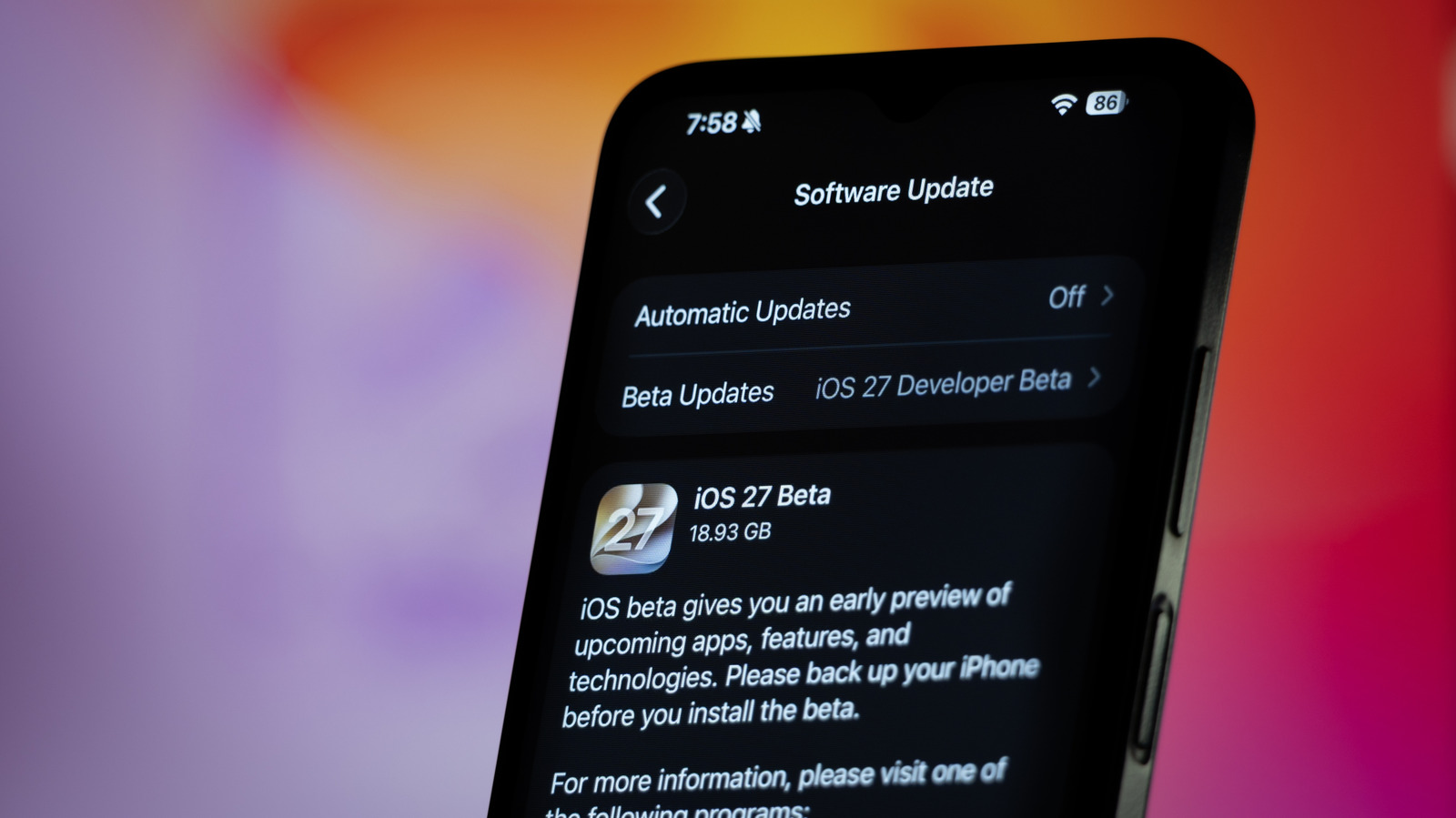
Apple’s annual iOS reveal at WWDC in June gives users a look at upcoming features, but the public beta that follows is not officially released until the fall. As noted in a recent preview of iOS 27, this year’s update includes the long-awaited Siri AI and enhancements to the Liquid Glass design. For those who choose to install the beta, the process is straightforward, but a critical step is often overlooked: creating a full backup before installation. Unexpected app incompatibilities or a device failure during the update can lead to data loss, making a pre-beta backup essential.
While iCloud offers the easiest way to keep copies of contacts and photos, not every app syncs with Apple’s cloud service. iCloud can perform full device backups automatically if the feature is enabled under Settings, then the user’s name, then iCloud Backup. However, iCloud backups are not ideal for beta users because they update automatically over time. After a beta is installed, iCloud will eventually save a new backup based on that beta version, and that backup will not work if the user later needs to downgrade to the older, stable iOS release.
The safer approach is to archive a backup using a computer before installing the beta. This involves connecting the iPhone to a Mac or Windows PC, entering the device passcode to establish trust, and locating the device in Finder on macOS or the Apple Devices app on Windows. In the General tab, users should select the option to back up all data to the computer and check the box to encrypt the local backup, which protects sensitive information like saved passwords, Apple Health data, and Wi-Fi settings. After setting a password for the encrypted backup, the user clicks Back Up Now, and once complete, selects Manage Backups, right-clicks the newest backup, and chooses Archive.
Archiving prevents that specific backup from being overwritten by subsequent backups, ensuring a clean copy of the iPhone’s pre-beta state. If problems arise after installing the beta, such as a favorite app malfunctioning, slower performance, or rapid battery drain, users can revert to a stable iOS version. The process requires downloading the latest stable version manually from a site like IPSW.me, which provides the correct files for each iPhone model.
To downgrade, the iPhone must be put into Recovery Mode by pressing and releasing Volume Up, then Volume Down, and holding the Side button until the connect-to-computer screen appears. With the device connected to a computer, holding the Option key on Mac or Shift on Windows while clicking Restore iPhone allows the user to select the downloaded IPSW file. After confirming the restore, the process takes roughly 15 minutes, and upon restart, the user chooses From Mac or PC on the Transfer Your Apps & Data screen to restore the archived backup.
This method is more tedious than iCloud backups but guarantees a usable copy of all data if beta issues occur. Given the extra steps and potential for instability, it may be wise for users to consider whether the new features are worth the hassle or to test the beta on a secondary device, keeping a primary iPhone on the official release.
More software news from TechManNews.