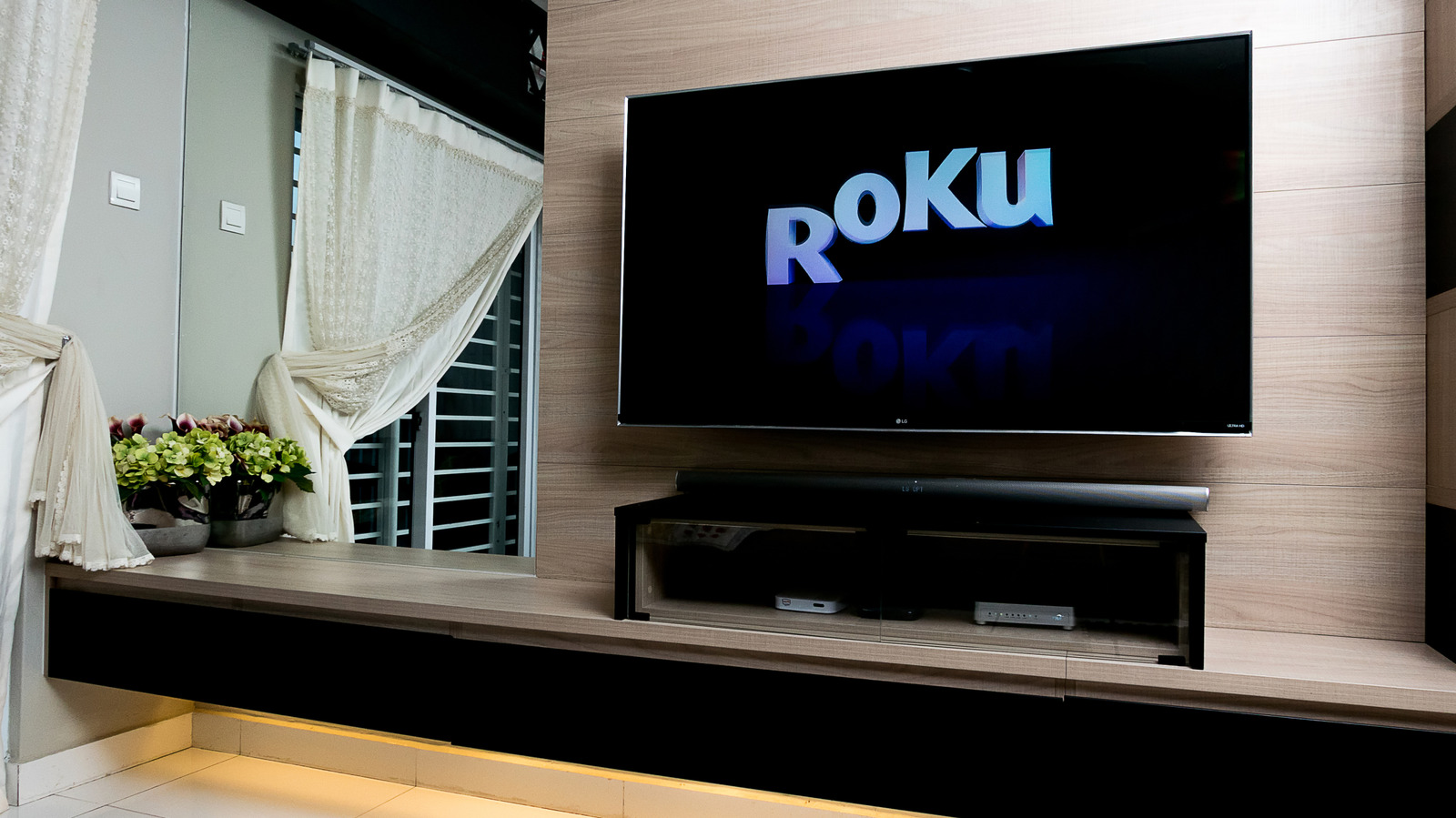
Roku TV owners across the US who are experiencing freezing, unresponsive remotes, or Wi-Fi drops now have a clear set of troubleshooting steps, ranging from a simple restart to a full factory reset. The guidance, which applies to both Roku-made televisions and other brands that license the Roku operating system, stresses that a basic restart is the safest first move because it preserves apps, account details, and saved preferences. Only when that fails should users consider the more drastic factory reset, which erases personal settings, unlinks the Roku account, and removes all downloaded channels, returning the TV to its out-of-the-box state.
Before attempting any reset, users should gather their Roku account email and password, Wi-Fi credentials, and any additional login details or PINs, as these will be required to reactivate the TV and reinstall streaming services afterward. If the TV is linked to another person’s account, that individual’s credentials will also be necessary. The process for a soft reset varies by model; some Roku TVs have a dedicated Power menu, while others require navigating to Settings, then System, and selecting System restart. For a completely frozen interface, unplugging the TV from the wall, waiting ten seconds, and plugging it back in is the recommended fix.
A factory reset is more involved and requires following on-screen instructions, including entering a code displayed on the TV. Once the reset completes, the television restarts and prompts the user to connect to Wi-Fi, sign into or create a Roku account, and reinstall favorite apps. Those using an antenna will also need to run a new broadcast channel scan. Users can also choose to reset only network settings or audio and picture settings through the same menu, which can be useful for clearing a stored Wi-Fi password or reverting display configurations without losing the entire setup.
Most Roku TV models include a physical reset option, though its location varies. Users should look along the back, side, or bottom for a button labeled Reset or a small pinhole switch, which would require a paperclip. With the TV powered on, pressing and holding that reset button for about twelve seconds, until the status light blinks rapidly, should bring up the factory setup screen. Newer models, including the Roku Pro Series and some Plus and Select Series sets, skip the physical button and instead require holding the Power and Find My Remote buttons together for twelve seconds.
For Wi-Fi issues specifically, a factory reset is not the immediate answer. The recommended path starts with a basic restart through the settings menu, then unplugging the modem and router for about thirty seconds before reconnecting them. After that, users can set up the wireless connection again. If the TV keeps dropping the connection, moving the router closer, removing physical obstructions, or testing another device on the same network can help narrow down the problem.
Unexpected factory resets are not normal behavior. If a Roku TV returns to the setup screen on its own after a software update or power outage, users should check that nothing is pressing against the reset button. If the reset loop continues without a physical cause, the source advises contacting Roku Support, as a repeating cycle likely points to a hardware, storage, or software issue beyond what a reset can fix. For those selling, donating, or returning a Roku TV, a factory reset is the essential final step to protect personal information, and owners should confirm the process is complete before handing the device over.
More gadget news from TechManNews.