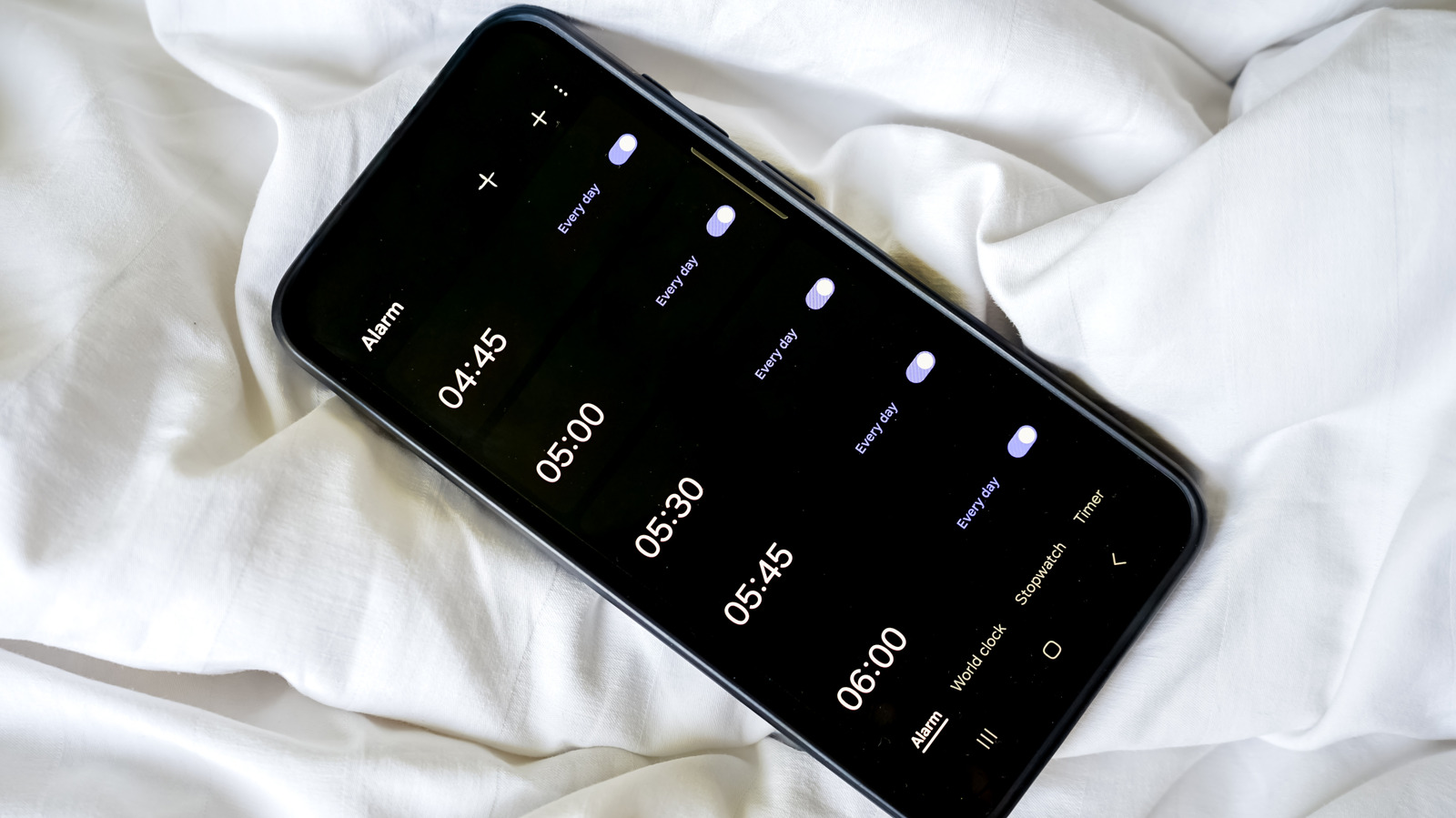
Android users who mute their phones for some peace and quiet may inadvertently silence their alarms as well, a problem that can lead to oversleeping and missed meetings. The issue stems from the fact that on certain Android devices, muting calls can also mute incoming alarms. Fortunately, there are multiple ways to keep calls muted while ensuring alarms still sound at full volume, though the exact method depends on the specific device and manufacturer.
The first place to check is the expanded volume menu. Pressing any volume button brings up the standard slider, and tapping the three-dot icon reveals additional sliders for media, ringtone, and notifications. If an alarm slider appears there, users can adjust it directly to the desired level. This approach offers a quick fix without needing to navigate through deeper settings.
If the alarm slider is not visible in the volume menu, users should head into the settings app. The path is typically Settings, then Sound & vibration, then Volume, where separate sliders for media, ringtone, notifications, and alarm are available. The alarm slider can be dragged to the preferred volume, though the exact menu names and steps may vary slightly depending on the Android device.
For Samsung phone owners, there is a shortcut to make the alarm volume slider appear in the expanded volume menu without visiting settings. By opening the alarm app, setting a short timer, and waiting for it to go off, users can then press the volume buttons and tap the three-dot icon to open the volume menu. The alarm slider will appear there, allowing for quick adjustments.
Another potential culprit is the Do Not Disturb settings. Users should open Settings and navigate to or search for Do Not Disturb, then verify that alarms are allowed during this mode. If alarms are blocked, they will not sound even if the volume is set correctly elsewhere.
Battery optimization settings can also interfere with alarms, particularly for those using third-party alarm apps. Users should review their settings to check if the alarm or clock app has been put to sleep or restricted from background activity. If so, excluding the app and granting it optimized or unrestricted background access can restore proper alarm functionality.
Finally, for those relying on third-party alarm apps, it is essential to ensure the app is set as the default alarm application. Otherwise, the Android device will continue using the native clock app, and alarms set in the third-party app will not go off. Following these steps should help users maintain a silent phone without sacrificing their morning wake-up calls.
More gadget news from TechManNews.