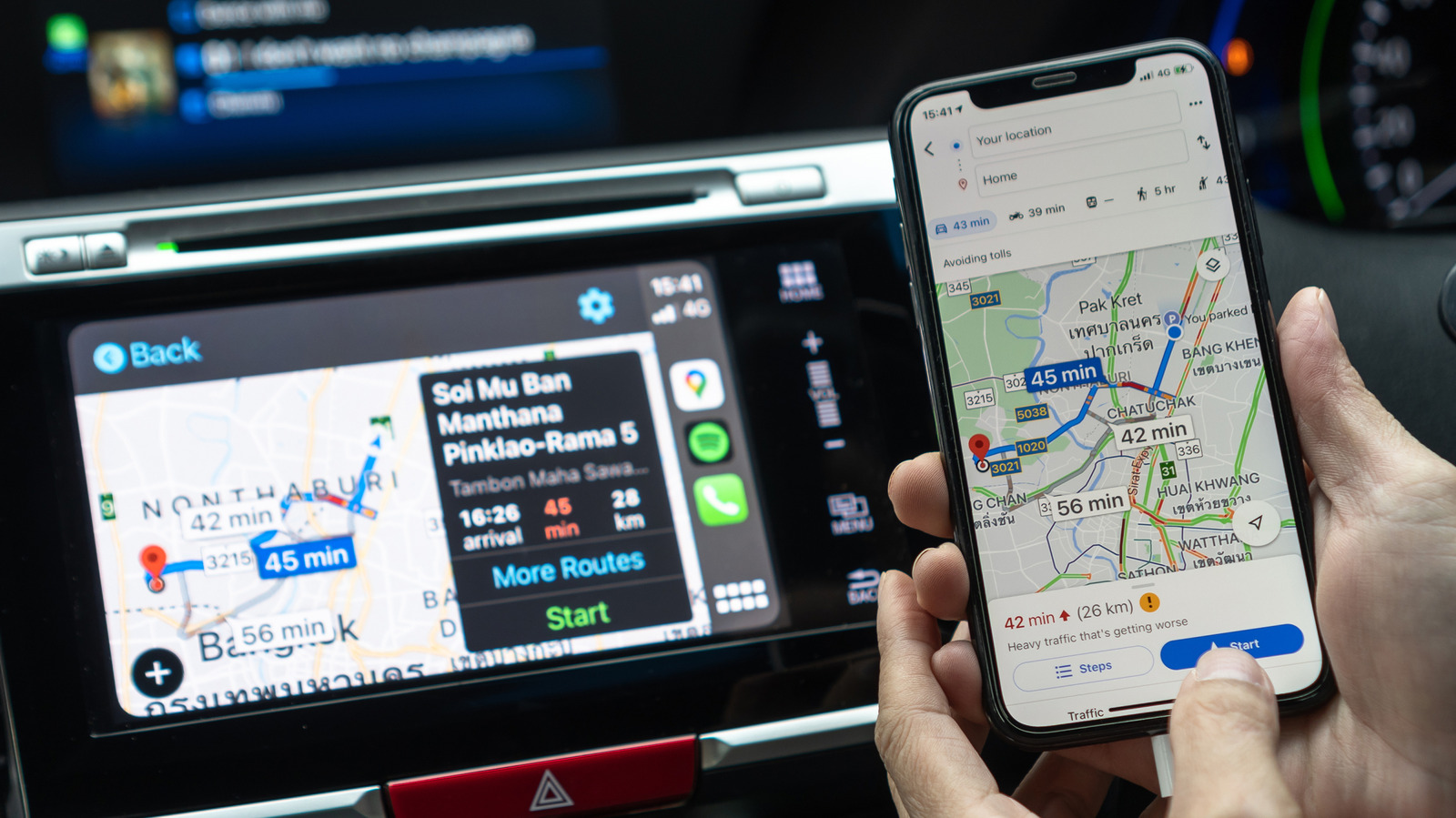
Drivers who prefer Google Maps over Apple Maps can still use the app through Apple CarPlay, and a few adjustments can make that experience smoother. Google Maps works in CarPlay like any other supported app, even though Apple Maps remains the default navigation option in most regions. The arrangement matters most to iPhone users in the United States, where Apple's default app rules still apply.
Apple has historically restricted changes to the iPhone's default apps. In the European Union and Japan, local regulations now let users pick their preferred navigation app as the default, which means Siri requests for directions or taps on an address open that app instead of Apple Maps. Users in those regions can make the change in the Default Apps menu under Settings, then Apps. Selecting Google Maps there provides the best experience.
Elsewhere, Apple Maps stays the default on CarPlay, but workarounds exist. One of the simplest is to add "on Google Maps" to the end of Siri requests in the car so Apple Maps does not open by default. Another option is moving Google Maps to the first page of the CarPlay Home Screen by opening Settings on the iPhone, going to General, then CarPlay, choosing the car, and selecting Apps. Dragging Google Maps toward the top puts it among the first apps a driver sees.
That same Apps menu is the place to check if Google Maps is missing from CarPlay entirely, since the app must first be downloaded from the App Store. A green Plus icon at the bottom of the menu adds it if needed. Drivers can also place a Google Maps widget on the CarPlay dashboard by returning to CarPlay settings and tapping Widgets instead of Apps. Some cars offer a split-screen dashboard reached by swiping to the leftmost panel, which usually holds a mini-map; starting a route in Google Maps once should let it take over that panel.
Google Maps itself offers settings that help on CarPlay. Adding home and work addresses lets drivers start common routes with a single tap. To set them, users open Google Maps on the iPhone, tap their profile picture at the top right, then go to Settings, Location and privacy, and scroll to Home and work addresses. A three-dot menu for each option allows additions or adjustments, and the addresses then appear on CarPlay.
Map appearance can also be changed. Tapping the compass button switches between north-up and heading-up views. The day and night themes can be set to change automatically through Settings, then Appearance, in CarPlay.
More software news from TechManNews.