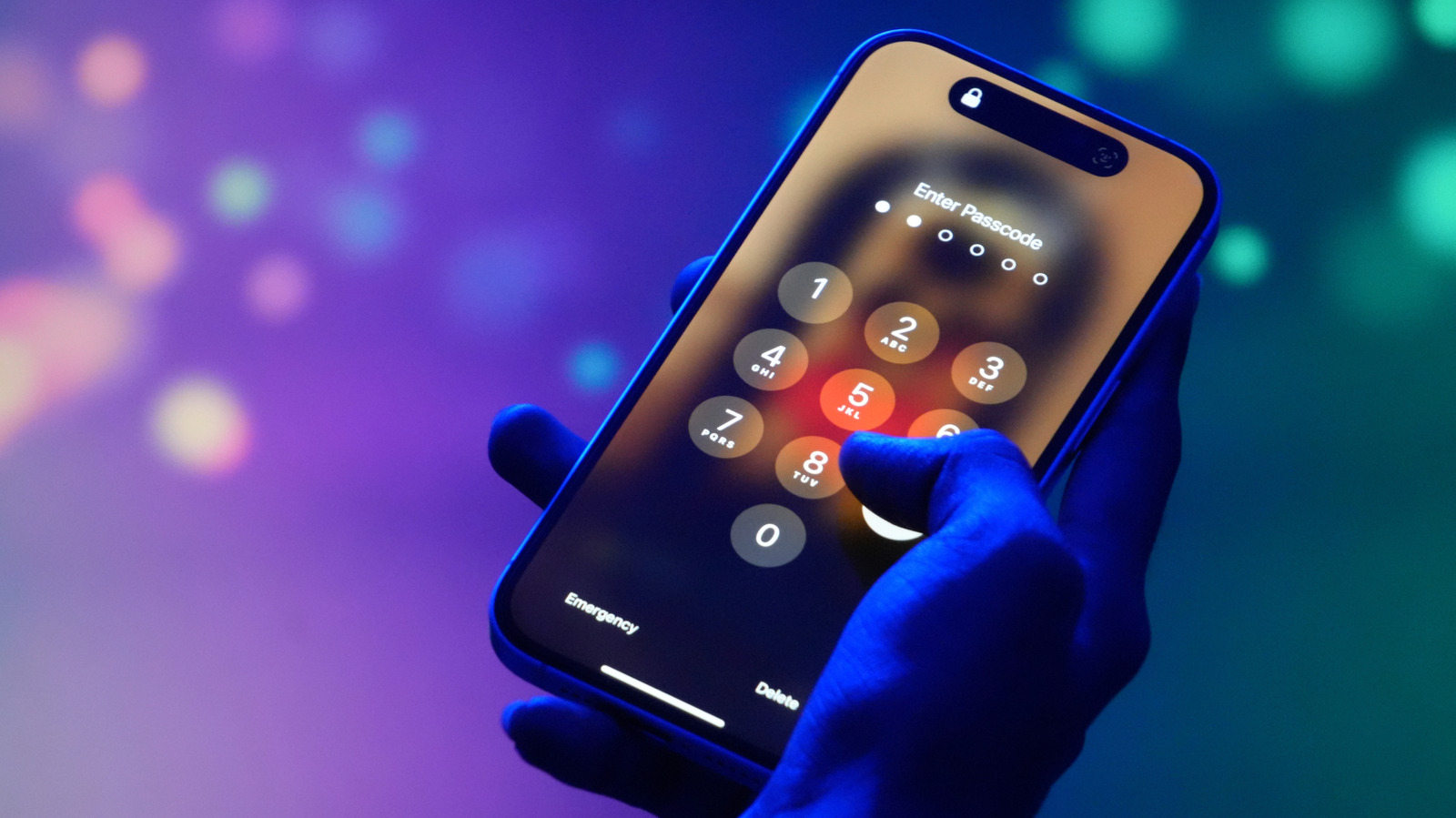
Getting an “iPhone Unavailable” message is a common frustration for US iPhone users, and it happens when a wrong passcode is entered too many times. The feature is designed to block unauthorized access, but it can be triggered accidentally by pocket presses or by simply forgetting a code. Fortunately, there are several recovery methods, though the best option depends on the iOS version in use, whether the passcode was recently changed, and what other devices are available.
For users on iOS 17 or later who have reset their passcode within the last 72 hours, the quickest fix is to revert to the previous passcode. After five failed attempts, the “iPhone Unavailable” screen appears with a “Forgot Passcode” option in the lower right corner. Entering the old code unlocks the phone, after which a new passcode must be set immediately.
Resetting the iPhone without a computer is possible for users on iOS 15.2 or later, provided Find My was previously enabled, the phone has an active cellular or Wi-Fi connection, and the user knows their Apple Account and password. Apple advises that those using an eSIM on iOS 16 or later contact their carrier first, since the carrier may provide a QR code to reactivate the eSIM. Choosing “Erase iPhone” deletes all data and settings, though on iOS 17 or later users can opt to keep the eSIM while erasing everything else. After the phone restarts, users follow the on-screen setup instructions.
For those who prefer a computer-based reset, a cable and internet connection are required, along with the Apple Devices app on a PC, available from the Microsoft Store. The process starts by turning off the iPhone with the side button and volume down button, then connecting it to the computer while the device is off. Upon plugging in, users must hold the side button until the Apple logo appears and continue holding until a computer-and-cable icon displays, signaling recovery mode.
From recovery mode, the next steps vary by platform. A window will appear stating that the phone must be updated or restored, and the user should select “Restore.” After the restore completes, the phone can be disconnected and set up again, but Apple notes that an iCloud backup is needed to recover data. Users may also need to update the iPhone before the restoration finishes, and if the phone restarts during the process, the recovery mode steps must be repeated.
All of these methods involve some degree of data loss unless a recent backup exists, so US consumers should weigh that before starting. The simplest path is the 72-hour passcode revert for those on the latest iOS, while older versions require a full erase. In every case, the process ends with setting up the iPhone as new or restoring from a backup.
More gadget news from TechManNews.