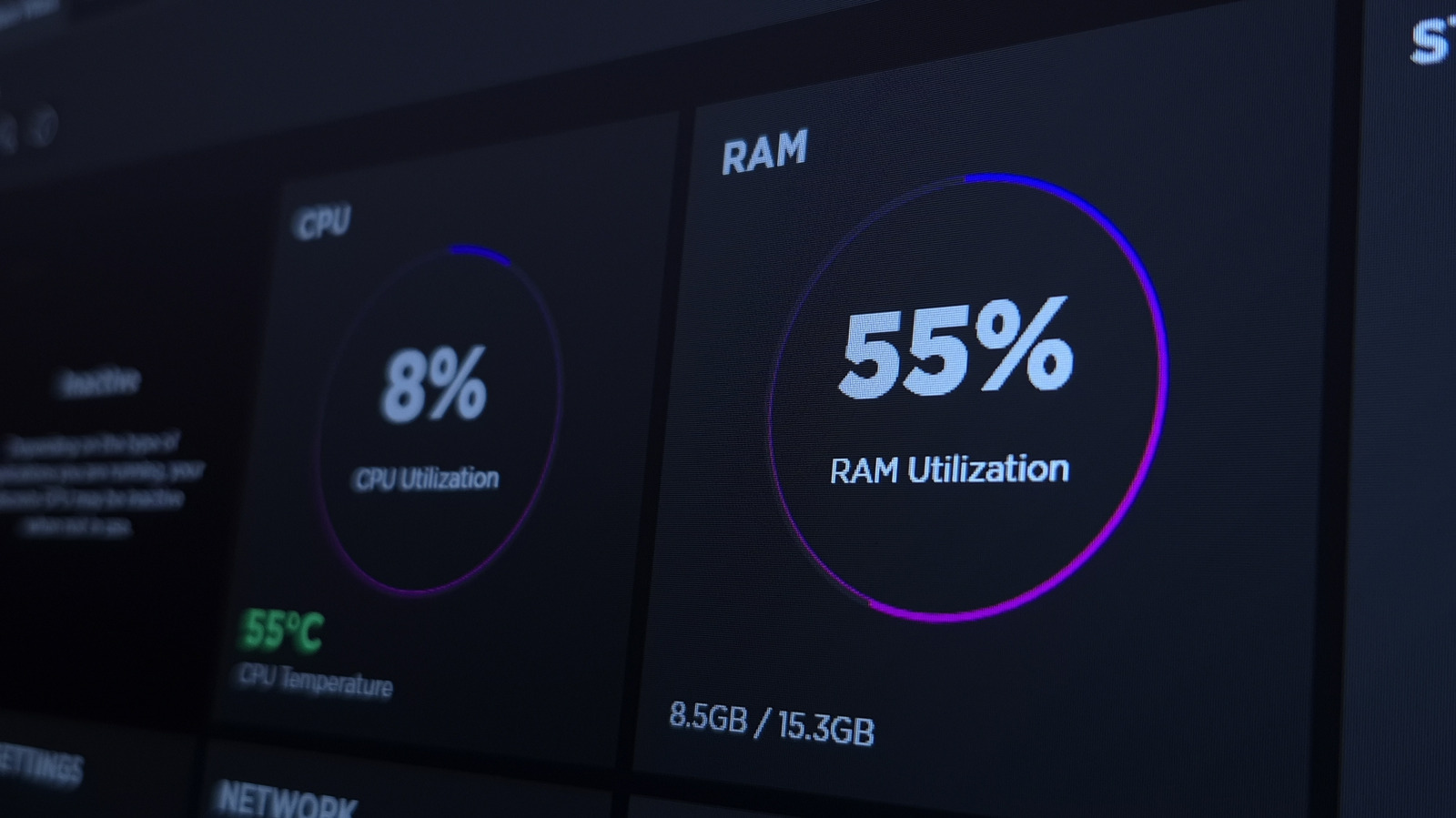
Windows 11 users who open Task Manager and see memory usage above 50 percent are usually seeing normal behavior rather than a malfunction, according to an explanation of how the operating system handles RAM. The apparent shortage affects ordinary PCs, including machines with the 16GB of memory that has become standard on modern computers. The high figures stem from a deliberate change in the way recent versions of Windows manage memory, not from a lack of capacity.
RAM temporarily holds data that the processor needs for running applications and opening files. It reads and writes far faster than a hard drive or solid-state drive, so keeping data in memory speeds up access. A larger amount of RAM lets a computer hold more items open and ready for switching, which improves multitasking.
Older versions of Windows used only the memory required by programs that were already open. Unused RAM provided no benefit and amounted to wasted resources. Current versions instead try to anticipate what will be needed soon and keep that content in memory, which can mean an application that is opened often or a file that is worked on regularly. Preloading makes the computer feel faster because the needed data is already on hand.
The work is handled by a process called SysMain, known as SuperFetch in earlier versions of Windows. It studies usage habits and keeps important components cached in standby memory. An application such as Chrome that is opened every morning is likely to be held in RAM, and opening a preloaded application takes significantly less time than loading it from a storage drive. That is why memory usage can exceed half of the available total or sometimes approach 100 percent.
Users can inspect the situation by pressing Ctrl + Shift + Esc to open Task Manager, selecting the Performance tab and then Memory. The In use figure should be ignored in favor of Available, because cached data counts as available and Windows can reclaim it immediately. A larger memory pool allows Windows to cache more applications and files, so standby usage is not a cause for concern.
Excessive memory use can still signal a real problem when a computer runs slowly, applications crash or alerts warn that the system is low on memory. In those cases, the Processes tab in Task Manager shows which applications are consuming the most RAM, and unneeded ones can be closed. Restarting a PC that has been running for a long time clears memory leaks, in which a program fails to return memory it has finished using, and unused startup applications should be disabled so they do not consume memory in the background.
Third-party memory cleaner applications are generally not worth using. They may lower the percentage of memory in use, but pushing applications into the page file, the portion of a storage drive Windows uses as backup memory, makes them slower, and the system eventually reloads everything. Disabling SysMain entirely is also not recommended in most cases, though on an older PC with a mechanical hard drive the constant preloading can keep the disk busy and slow the system. Users in that situation can press Win + R, type services.msc, find SysMain, open its Properties, click Stop and set the startup type to Disabled. For systems with 8GB of RAM or less, the proper fix is upgrading to 16GB or more, even though RAM is more expensive than ever.
More hardware news from TechManNews.