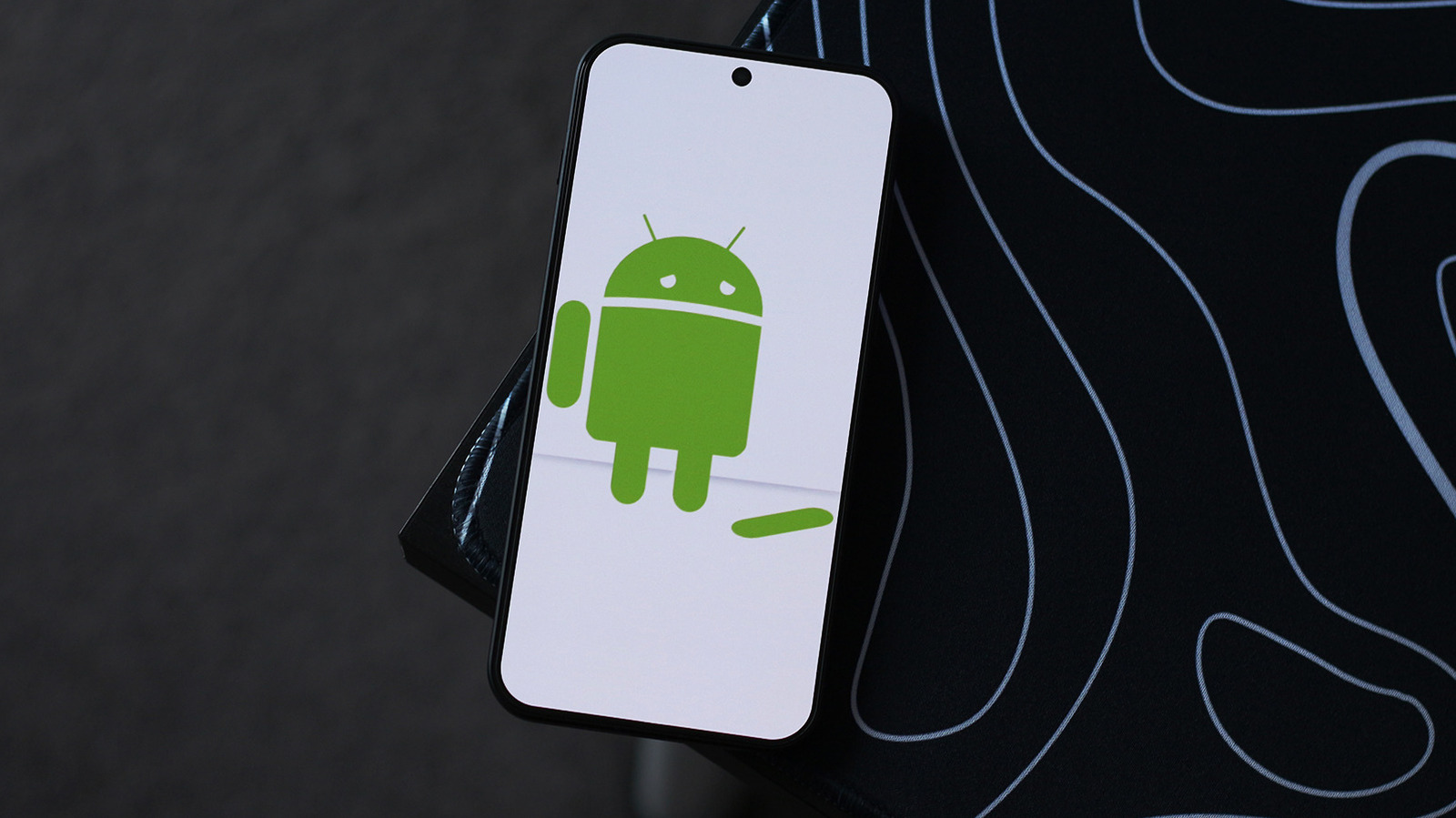
Android users experiencing frequent app crashes have several troubleshooting options, according to a guide published by Engadget. The piece notes that, based on the author’s long-term experience as an Android user, most crashes stem from buggy updates rather than hardware faults. The first recommended step is to check the Google Play Store for pending app updates, which can be accessed by tapping the profile picture, selecting Manage apps and device, and reviewing the Updates available section.
If no update is pending, users can dig into the app’s settings through the App info page, reached by long-pressing the app icon and tapping the "i" icon, or via Settings > Apps. Inside those settings, clearing the cache under Storage & cache is advised, followed by Force stop, which can remove corrupted temporary files. If that fails, uninstalling and reinstalling the app from the Play Store is the next step, though this will erase locally stored data such as credentials and media files, so cloud backup should be enabled beforehand to preserve information.
A simple phone restart can also resolve many issues, with most Android models responding to a long press of the power button until the logo appears, sometimes requiring the volume key as well. Users should also check for system-level software updates under Settings > System > Software update, as these can include bug fixes and security patches that address crash-inducing problems.
For those willing to go further, the article describes sideloading an older, stable version of the app. This process on newer Android versions involves enabling developer mode by tapping Build Number seven times in Settings > About Phone, followed by a restart and a one-day wait before allowing installations from unknown sources, a security measure against social engineering. The guide recommends APKMirror as a trusted source for APK files, noting that some apps using split APKs may require the APKMirror Installer tool.
This sideloading approach is a temporary fix until the developer releases a proper update, at which point the user must remove the unofficial version and reinstall from the Play Store to resume normal updates. As an alternative, the article suggests using the app’s web version in a mobile browser, which often works reasonably well and supports notifications and home-screen pinning for faster access. The guide covers these options without endorsing any single method, aiming to give Android users a practical set of steps to try before giving up on a troublesome app.
More software news from TechManNews.