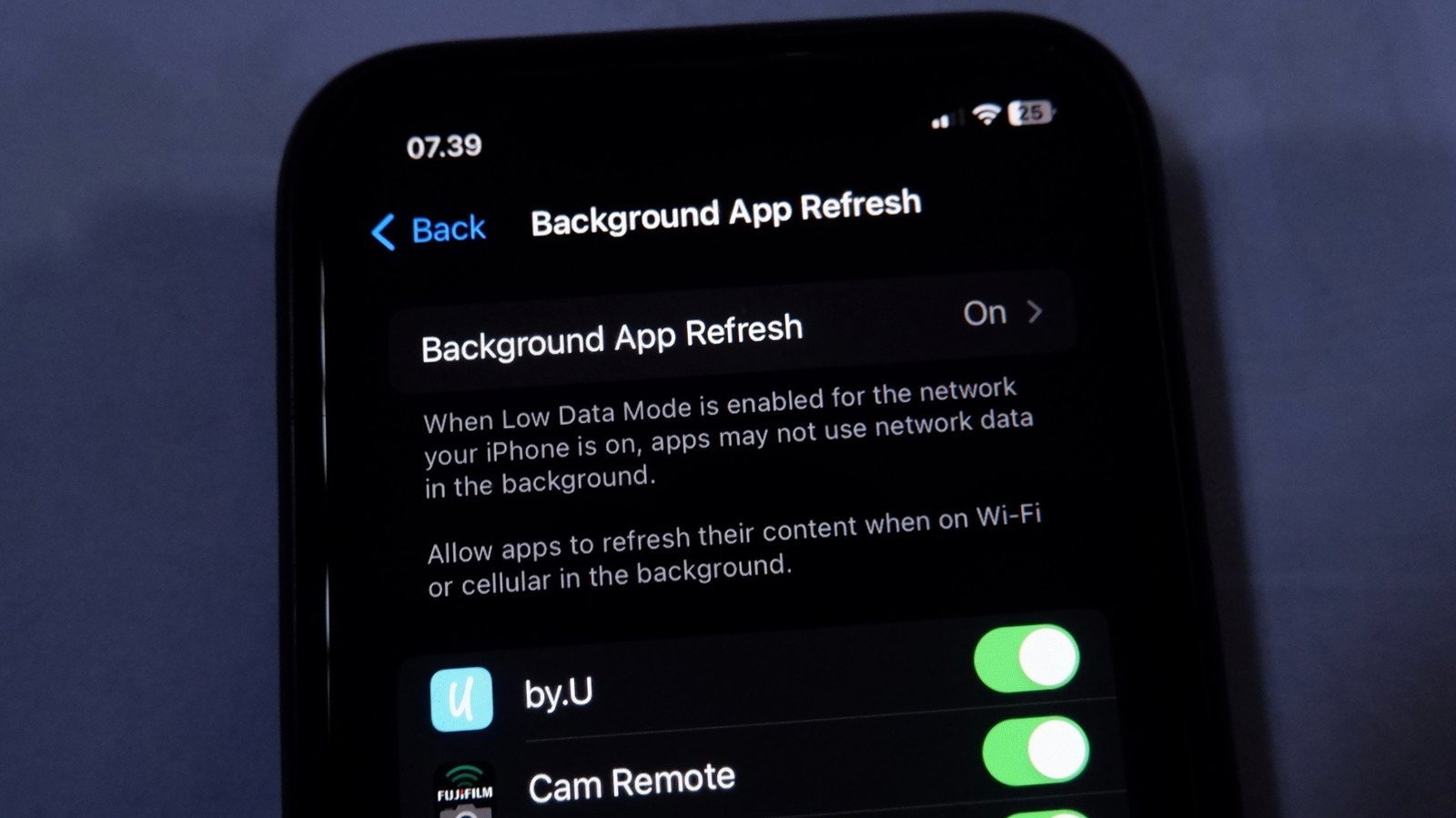
iPhone users looking to stretch battery life or cut down on data use will find a key control in the Background App Refresh setting, which governs how apps pull in new information from the internet when they are not actively open. The feature is found under Settings, then General, then Background App Refresh, where Apple explains that it allows apps to refresh their content in the background. According to Apple's support page on switching apps, apps move into a suspended state shortly after a user stops interacting with them, but Background App Refresh lets them continue fetching updates during that time. Because the setting involves internet activity, users can choose whether it runs on both Wi-Fi and cellular data or on Wi-Fi alone.
The main purpose of the feature is preloading content so users do not have to wait for updates when they open an app. That convenience matters most for people who keep many apps on their phones and expect current information to be waiting, such as a podcast app that should have the newest episode downloaded before a commute. Keeping background refresh on makes sense for apps used regularly or relied on for real-time information, including those for travel, navigation, file syncing, reminders and productivity. Many apps are enabled by default, but the control is granular, letting users decide app by app.
Not every app needs the permission. Food and shopping apps, most games, and apps used mainly for browsing websites generally do not require background refreshing, nor do apps that are rarely opened. Disabling the setting for an app does not suppress its notifications, which will still appear as long as they are enabled and not blocked by a Focus. In most cases, turning off background refresh for an app means at worst a brief wait for new data to load, and users unsure about a particular app can disable it and observe how the experience changes.
Apple provides other tools for limiting background activity. Low Power Mode, available through Control Center, disables background refresh for all apps, which the source describes as a useful fallback when maximum battery life is the priority. Users who find an app consuming too much data can block it from mobile data entirely through Settings, then Cellular, by tapping Show All under the Cellular Data list and turning off the slider for that app, leaving it to connect only over Wi-Fi.
The Cellular menu also displays how much data apps have used in the Current Period, though that figure only resets when a user manually resets it. Scrolling to the bottom of the Cellular page and tapping Reset Statistics, then using the phone normally for a while, gives a clearer picture of typical consumption. A per-network option is available as well: under Settings, then Cellular, users with more than one SIM can tap their mobile carrier and choose Data Mode, then Low Data Mode, which limits background activities so only active apps use the network. The same can be done for a Wi-Fi network, which matters when using a mobile hotspot, by tapping the network name, selecting the i icon and enabling the Low Data Mode slider.
More software news from TechManNews.