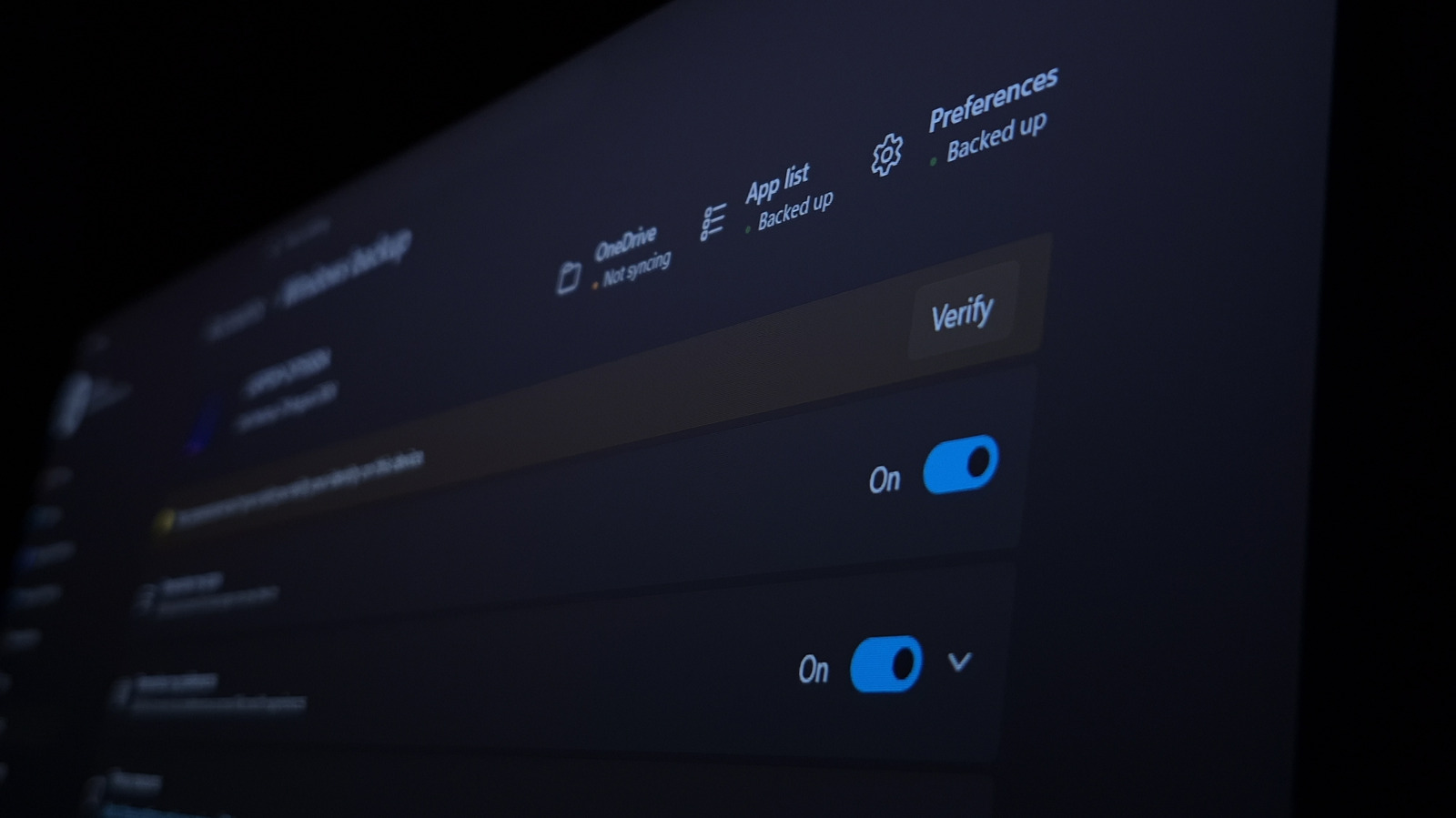
Windows 11 users can adjust a series of built-in settings to reduce unwanted behavior and add practical features, according to guidance on customizing the operating system. The changes cover default app assignments, clipboard management, advertising-style prompts, update timing and power use. Microsoft ships the OS in a usable state, but the article states that time spent in menus disabling annoying behaviors and enabling useful ones is worth the investment. The piece notes that some important toggles are buried under layers of menus and that Windows 11 changes frequently, so even users who have organized a PC before should recheck the settings.
For users who have installed alternative browsers, image viewers, text editors or PDF readers, Windows 11 tracks a default app for every file type. The instructions direct users to press Win + I to open Settings, then go to Apps and Default apps, where selecting a program shows the file types it can open. Browsers get a special Make a app your default browser button at the top of that screen, and a Choose defaults by file type option at the bottom of the app list lets users set which app opens extensions such as TXT files.
The clipboard normally holds only one item, but a clipboard manager keeps multiple entries. It is off by default, and users can enable Clipboard history under Settings, System and Clipboard, plus an option to sync clipboard history across devices. Pressing Win + V then opens a window of recently copied text and images. The manager stores the last 25 cut or copied items, and a Pin icon keeps frequently needed entries permanently, while a Paste as Text option strips formatting. The third-party tool ClipClip is cited as an upgrade that stores more snippets and organizes pinned clips in folders.
Microsoft also delivers suggestions that amount to ads for its own products, and the article lists locations for turning them off. These include Settings, Personalization and Start, to disable recommendations for tips, shortcuts and new apps; Privacy and security and Search, to disable search highlights; and Personalization and Lock screen, to disable facts, tips and tricks, switch away from Windows spotlight, remove widgets and disable widget suggestions. Users are also directed to disable toggles under Personalization and Device usage, turn off personalized offers and settings recommendations under Privacy and security and Recommendations and offers, and disable Suggested senders plus two checkboxes under System and Notifications.
Other settings address performance and maintenance. Under Settings, System and Advanced, an End Task option adds a shortcut for terminating processes to the right-click menu for taskbar apps. Windows Update and Advanced options includes Active hours, which can be set manually with a start and end time so Windows will not automatically restart during that period. Night light under System and Display warms the screen and can be scheduled from sunset to sunrise. Storage Sense under System and Storage handles automatic cleanup, Power Mode under System and Power offers a Best performance choice, and a PIN set under Accounts and Sign-in options works with Windows Hello. Delivery optimization under Windows Update and Advanced options can be limited to devices on a local network, Title bar window shake under System and Multitasking can be disabled, and trimming startup apps is recommended so only needed programs run at boot. The article also suggests reviewing Installed apps for manufacturer bloatware.
More software news from TechManNews.