Windows 11 users who have dismissed Task Scheduler as an obsolete utility may be overlooking a capable automation tool, according to Microsoft's own documentation. The component waits for a trigger configured by the user and then runs the task tied to it when that trigger fires. Triggers can include a specific time, Windows startup, a user login, or a system event.
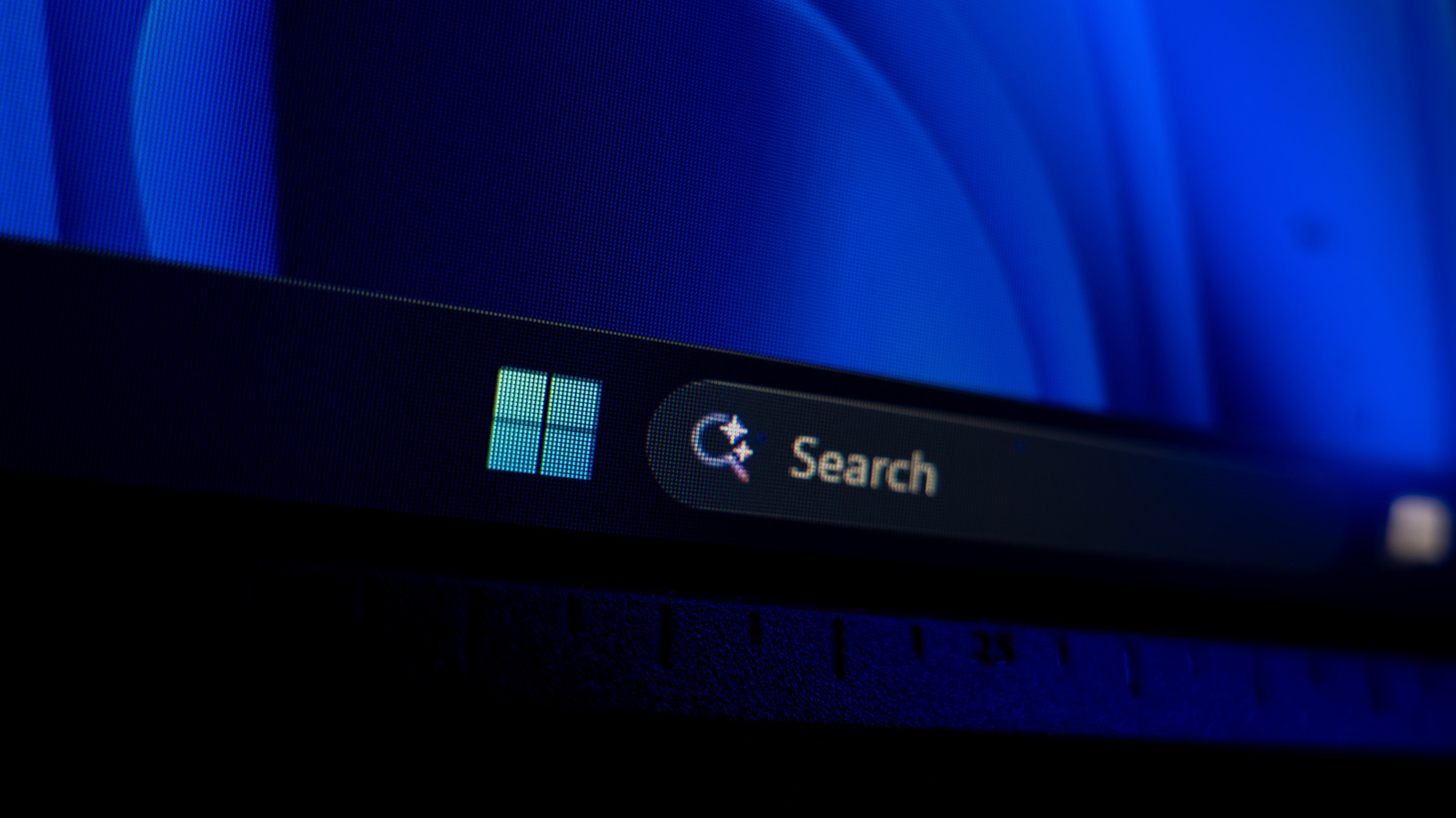
Getting started requires typing Task Scheduler into the Start menu and opening it. From the Actions pane on the right, users should select Create Task rather than Create Basic Task, since the full option exposes the controls that make the tool worth using. The interface is busy, but most of it can be ignored at first.
One significant consideration applies to laptop owners. Microsoft notes that a task running every five minutes will prevent a PC from entering a low-power idle state, so event, idle, or maintenance triggers are preferable for tasks that do not need constant polling. Users should also avoid enabling Run with highest privileges unless a task genuinely requires administrator rights, since fewer administrator-level processes running without explicit input is better.
A practical example involves keeping supported applications current through WinGet, Microsoft's package manager. The command winget upgrade --all attempts to upgrade eligible installed packages that the tool recognizes, with flags available to run silently and accept package and source agreements without interaction. Users should run the command manually before scheduling it, since not all applications are managed by WinGet, pinned packages are skipped by default, and some installers may still require elevation.
Task Scheduler can also address the burst of activity at login. Instead of removing startup apps outright, users can disable an app's normal startup entry and launch it through a delayed logon trigger, letting a cloud storage client or other frequently used program appear a few minutes later rather than competing with everything else loading at once. The tool also pairs with PowerShell scripts that have already been tested, such as copying files or performing routine PC housekeeping, and conditions can hold a job until idle time or AC power is available.
For automations that involve clicking through applications or interacting with interfaces, Power Automate for desktop is the better fit, though broader cloud and unattended automation may require paid licenses. Separately, little reason exists to automate maintenance that Windows already handles: Storage Sense deletes temporary files and Recycle Bin items automatically, and Windows optimizes both hard disk drives and solid-state drives on its own.
More software news from TechManNews.