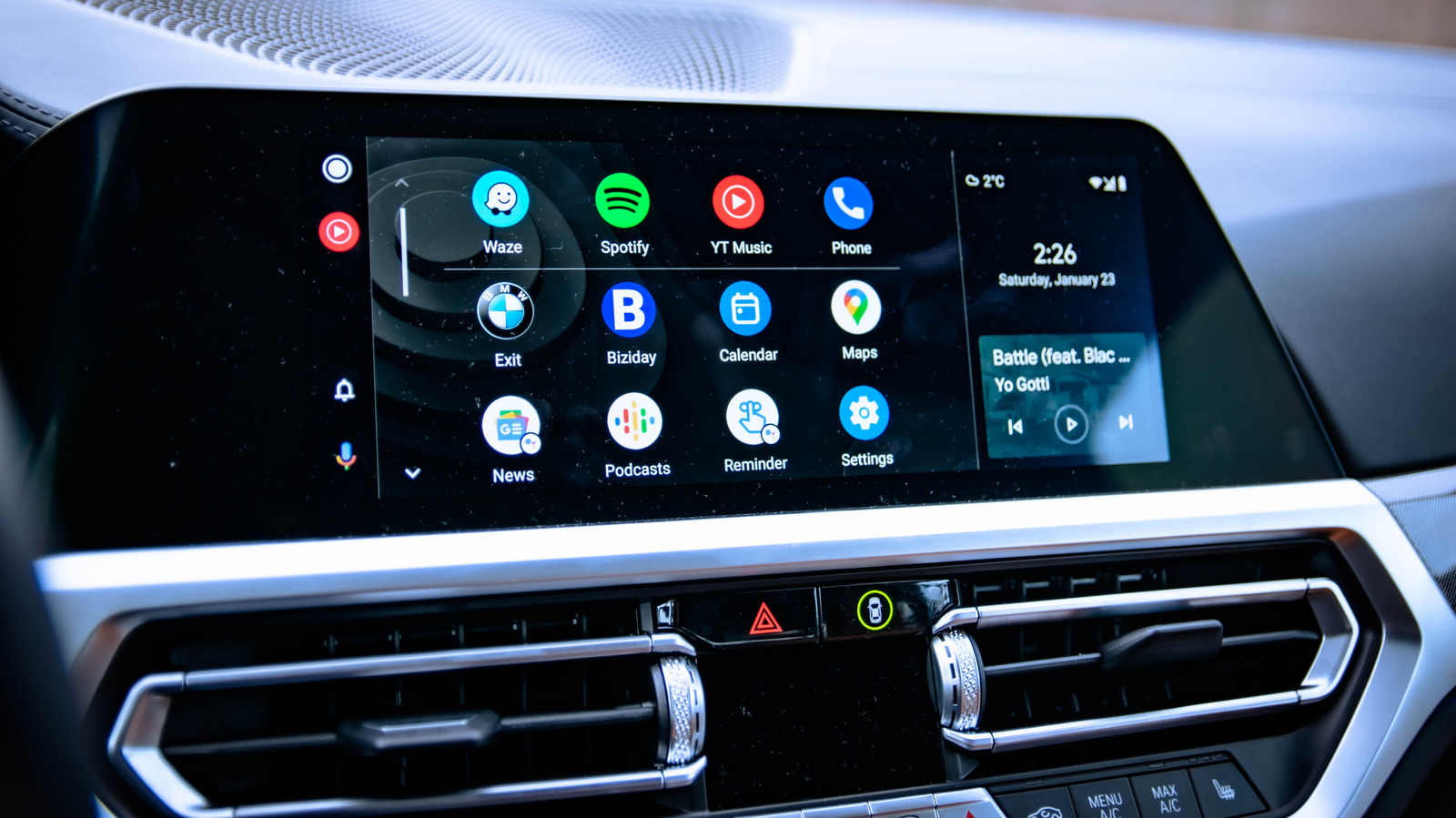
Android Auto connection failures for U.S. drivers typically stem from the link between a smartphone and a vehicle’s infotainment system, rather than a serious software fault. For wired setups, the first step is to inspect the USB cable for visible damage and ensure it is fully seated in both the phone and the car’s port. Users should also swap to a different USB port or replace the cable if there are no obvious issues, as the port may be faulty. A cable designed only for charging will not work; data transfer support is required, and Google recommends keeping the cable under six feet long with no extension adapters.
For wireless Android Auto, both Bluetooth and Wi-Fi must be active on the phone. If the devices appear connected but the system does not respond, disconnecting and forcing a manual reconnection to the car is the next move. The vehicle’s infotainment screen must be on the correct menu for Android Auto to become visible. Testing with a second Android phone, if one is available, can help determine whether the problem lies with the handset or the car itself.
When the connection method checks out, restarting the phone is a simple fix that clears running processes from memory. After rebooting, users should remove the existing vehicle connection entirely and pair the phone as if it were new, typically found under Settings, Connected Devices, and Android Auto, or by searching for Android Auto in settings. Selecting Forget removes the car from the list, then the user can choose Connect a Vehicle again while ensuring the car’s infotainment menu is ready for pairing. While in these settings, enabling Android Auto to start automatically for the car and allowing it to run with the screen locked can improve reliability, though privacy preferences should be considered.
Clearing the Android Auto app’s cache is another option for persistent problems. This is usually reached through Settings, Apps, and then Android Auto, where users can Force Stop and then tap Storage to clear the cache. Clearing data provides a fuller reset, but will require manual reconnection afterward. If the issue continues, updating the phone’s operating system and Google Play Services ensures the latest bug fixes are installed.
Switching between wired and wireless connections can isolate the problem, as some cars only support one method. Third-party wireless adapters exist for vehicles that only support wired connections. Android Auto also requires specific permissions, such as access to contacts for calls and messages, which can be granted under the app’s Permissions section. VPNs have been known to interfere with the connection, so enabling split tunneling to bypass Android Auto is a possible workaround.
Other minor factors, such as battery-saving mode, should be turned off to rule them out. If all troubleshooting steps fail, testing a different phone helps determine whether the issue is specific to the handset or the vehicle. Finally, owners should confirm their car is actually compatible with Android Auto before assuming a deeper problem exists.
More gadget news from TechManNews.