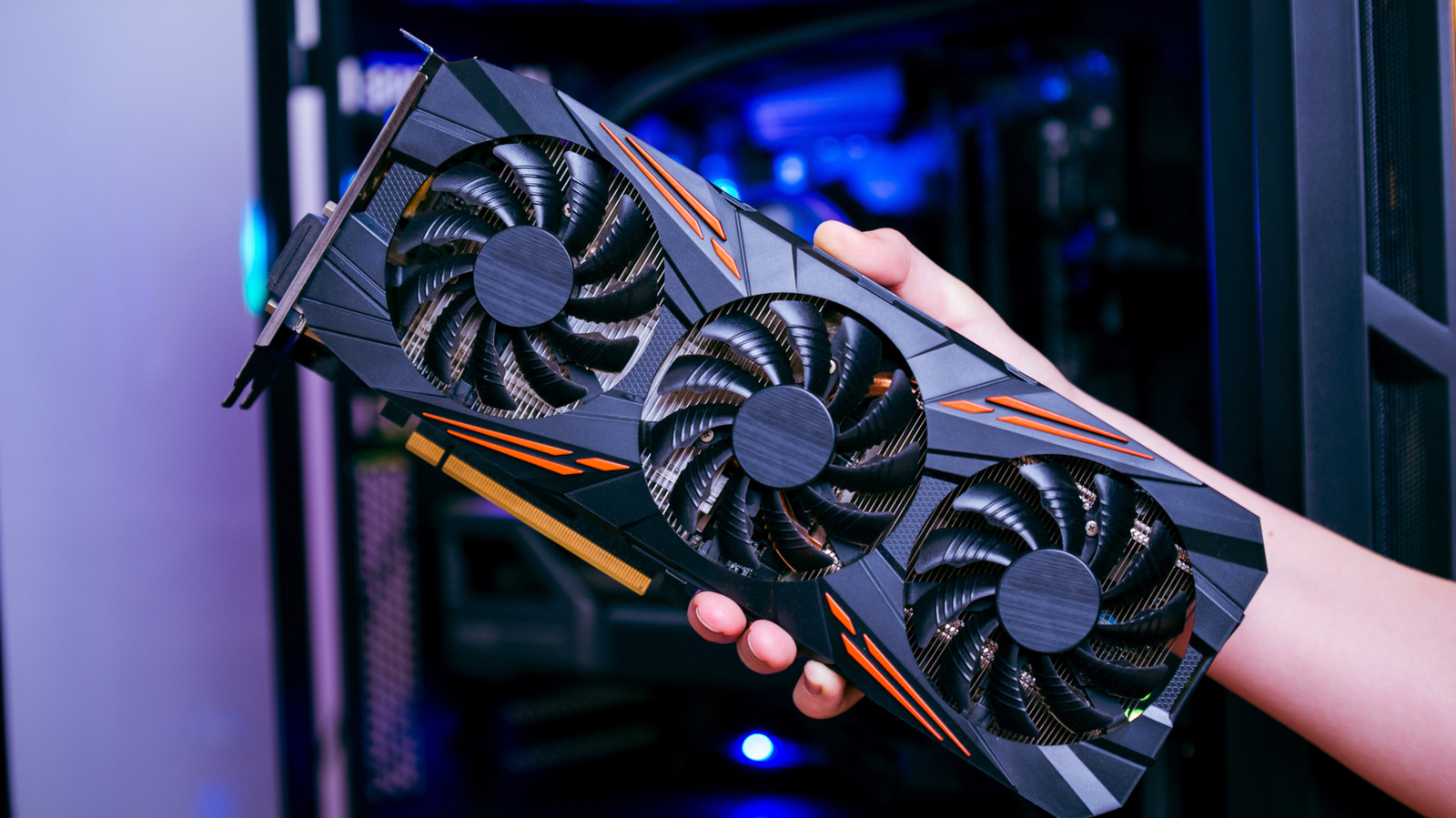
Graphics card owners on Windows 11 have multiple built-in and manufacturer-supported paths for updating their GPU drivers, according to a recent guide. The importance of these updates stems from the fact that hardware driver patches primarily fix known issues, even though they lack the new features found in other software updates. For graphics cards specifically, frequent updates are common because new game releases often rely on the latest drivers to deliver optimal performance. Determining the correct source for these drivers can confuse many PC users, prompting the need for clear instructions.
The simplest route for those who have not updated in a while is through the Windows operating system itself. Users can navigate to Settings, then Windows Update, and click the button to check for updates, which will fetch and install any available driver packages. An alternative built-in utility is Device Manager, accessible from the Start Menu, where a list of connected hardware appears. By expanding the Display adapters section and opening the GPU entry, typically from AMD, Intel, or NVIDIA, users can visit the Driver tab and choose the option to search for drivers automatically.
While convenient, these Windows-integrated methods come with a caveat regarding the quality of the results. Windows Update reportedly does not have the best track record for handling GPU drivers, and it may install a version that lags several releases behind what the chipmakers offer directly. Such outdated drivers could miss the most recent performance improvements and bug fixes available from the manufacturer. For users with more time, the guide recommends fetching the latest drivers straight from the GPU maker’s own channels.
To proceed with manual updates, users must first confirm which company produced their GPU, a detail visible within Device Manager. Next, they should check the Start Menu for any companion software from AMD, Intel, or NVIDIA already installed on the machine. For NVIDIA hardware, the NVIDIA App includes a Drivers tab on the left side where a Download button appears when a newer version is ready. AMD users can rely on the Adrenalin app, clicking the settings cog in the top-right corner and selecting Manage Updates to open the separate AMD Install Manager utility, which handles the installation process.
Intel GPU owners have a simpler interface, as the Intel Graphics Software utility presents an Install All button for any pending driver updates. During the installation process, it is normal for the display to flicker several times before a confirmation popup indicates that the latest drivers are installed. A system restart is not always mandatory, though performing one is considered a safe practice.
Alternatively, users who need a specific driver version or prefer not to keep extra companion software running can install drivers manually. The quickest method for finding these is to search online for the exact GPU model name followed by the word "drivers," which should lead to the manufacturer’s official website. This approach works for both AMD and Intel GPU drivers, and generally, installing the newest available driver is the recommended course of action.
However, there are exceptions where a fresh release might cause game crashes or performance problems. In such cases, the guide notes that Windows Update has already begun reverting problematic drivers automatically, but having the ability to locate and install an older version of the GPU driver manually can prove very useful for affected users.
More hardware news from TechManNews.