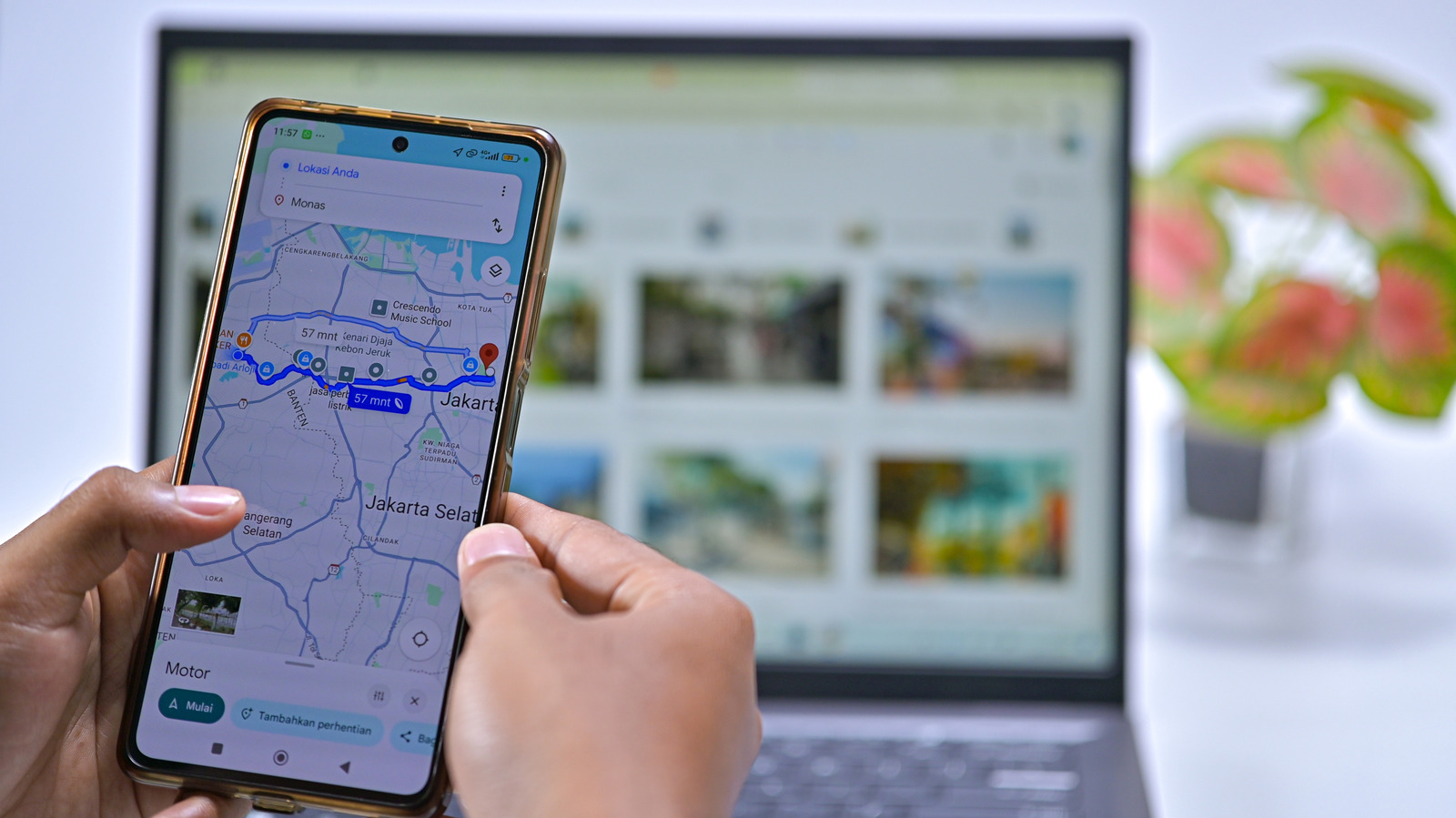
Google Maps offers built-in shortcuts for home, work, and other frequently visited destinations, and users who have moved or never configured those locations can set them through either the web or the mobile app. The feature is aimed at cutting down on time spent entering an address that users travel to most often. Google Maps stores the information inside a Google account, where it can be edited or removed at any time.
The company also provides a way to avoid exposing an exact street address. Because anyone with brief access to an unlocked phone could open Google Maps or another app such as Uber and read the saved location, Google Maps allows users to set a nearby public place, such as a restaurant or grocery store, as the home entry instead. Navigation to that nearby point is close enough to guide the user the rest of the way.
On the web, users open Google Maps in a browser and sign in at the top right if they are not already logged in. Clicking inside the search box should reveal Home and Work entries with an Edit option at the top. If those entries do not appear, users can click their profile icon at the top right, choose Manage your Google Account, select Personal info in the left sidebar, and then scroll to Home address. An Address line 2 button is available, and a Choose on map option lets users drop a pin rather than type an address.
In the mobile app, changing either address requires tapping the three-dot button next to it and selecting Edit home or Edit work. The new address goes into the bar at the top, which populates as the user types, and Choose on map remains available for locations that do not map cleanly to a street address. Google Maps also offers a Change icon action for both special addresses, with options that include a treehouse, a submarine, or a barn. Selecting Remove clears the address, and users can likewise enter or update a Work address to keep commute estimates accessible.
The app additionally supports labels, which assign a custom name to any spot for searching or voice commands, including in Android Auto. Google Maps cites a gym as an example, letting a user say a short label instead of a full business name and street. Labels can also be applied to places without an address, such as GPS coordinates for a specific campsite. To add one on a computer, users click the location, scroll down in its panel, and click Add a label; on a phone or tablet, they scroll left along the row of icons below the basic information and choose More, then Add label. Labeled places appear with their name and a blue icon, and the Labeled group omits photos, review scores, and opening hours.
Google Maps also displays addresses saved for contacts, allowing users to search for them by name. If that does not work, the company advises checking that Google contacts are synced with the phone and that the Google Maps app has permission to access contacts.
More gadget news from TechManNews.