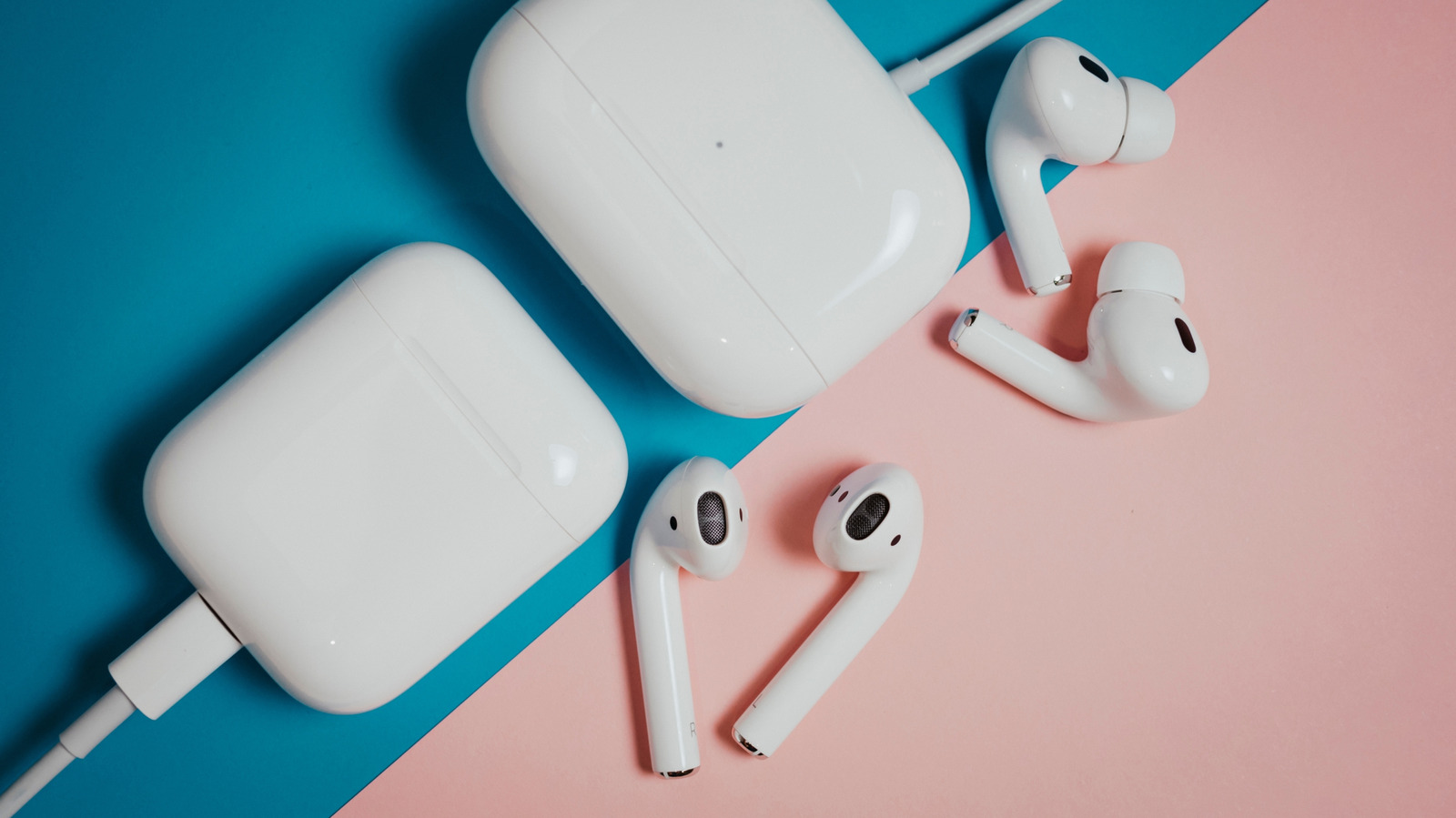
Connecting an Apple Pencil to an iPad is a short process, but compatibility between the stylus and the tablet is the first thing iPad owners need to confirm. Apple's accessory lineup has split into several models, and each one works with a different set of devices. The company's own compatibility list is the reference point for checking whether a given Pencil and iPad will work together.
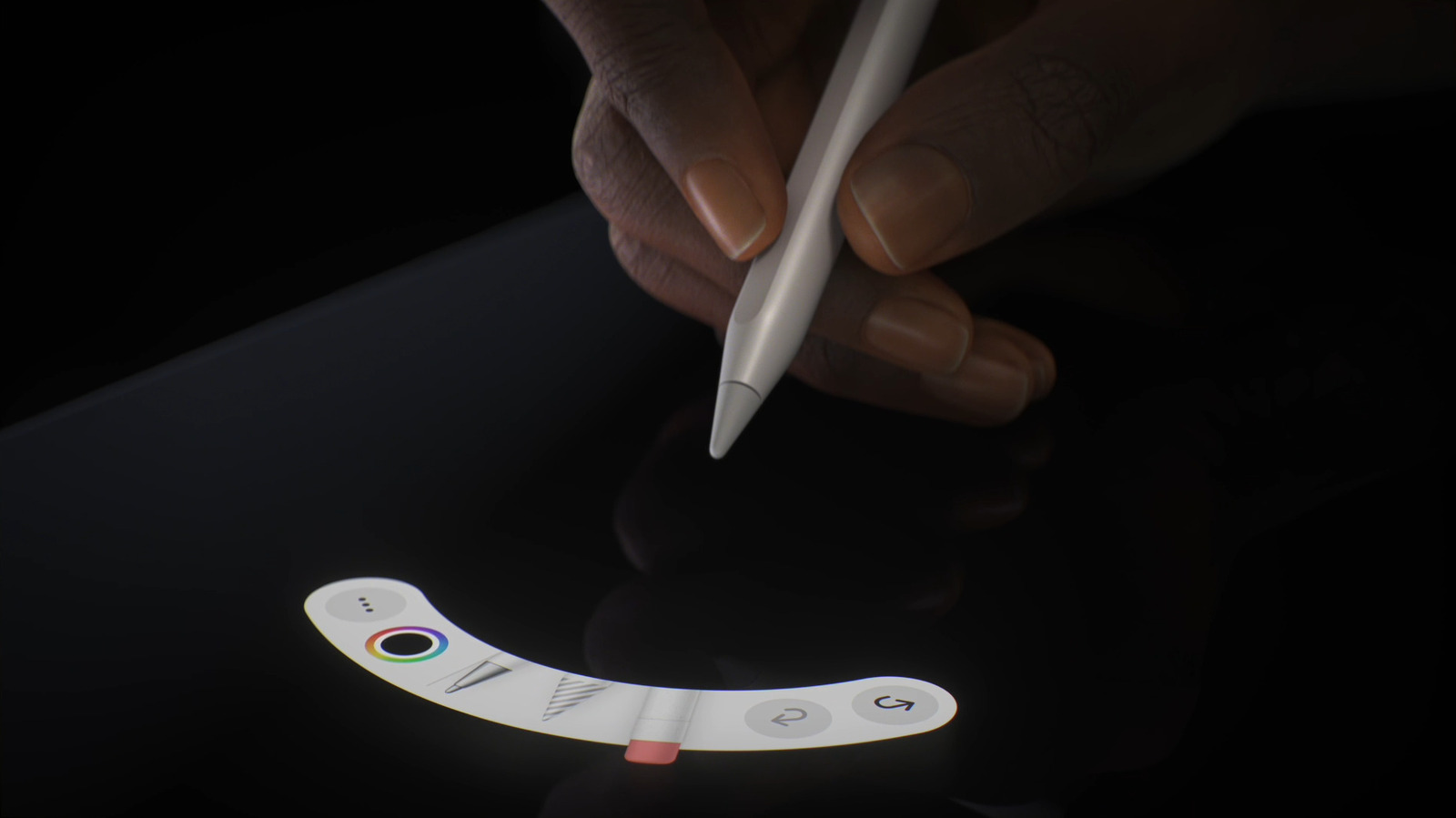
The Apple Pencil Pro is the simplest to set up. After unboxing, the user attaches it magnetically to the long edge of the iPad and it is ready within seconds. That magnetic attachment is also how the Pencil Pro charges and how it is typically stored. The second-generation Pencil pairs in the same way.
The first-generation Pencil takes more steps. Its cap must be removed and the stylus plugged in through its Lightning connector, after which the user taps Pair. Anyone using that original Pencil with a USB-C base iPad, meaning the 10th generation or the A16 model, needs a Lightning to USB-C adapter. The first-generation model and the USB-C Pencil must both be re-paired whenever the iPad restarts or Bluetooth is turned off.
Compatibility is where most problems begin. The first-generation Pencil is built for Lightning-equipped iPads and will not work with the newer USB-C iPad mini, Air or Pro models, while the base iPads from 2022 and 2025 support it with the adapter. The second-generation Pencil is restricted to certain iPad models that are neither too old nor too new. The USB-C Pencil has broader support, and the Pencil Pro works only with a narrow group of iPad Air, Mini and Pro models.
When a Pencil pairs but still misbehaves, Apple's troubleshooting steps start with reconnecting it physically to the iPad. A restart follows, done by holding a volume button and the power button and then swiping the power-off slider, or by holding the power button on an older iPad with a Home button. Users should also check for updates under Settings, then General, then Software Update. Re-pairing the Pencil may require disconnecting it first.
If those steps fail, the next checks are in Settings under Bluetooth, where Bluetooth should be confirmed as enabled. A Pencil that already appears as Connected can be removed by tapping the i icon beside it and choosing Forget this Device, after which the pairing process can be tried again. Apple notes that a Pencil may lack enough charge to pair, so leaving it plugged in for a while can help, and the company also suggests removing any cases or covers that might interfere. If nothing works, the remaining option is a service appointment at a local Apple retailer, hopefully covered by AppleCare.
More gadget news from TechManNews.